
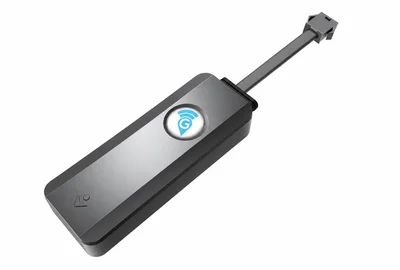
EZY01 OBD plug-in setup
A practical walkthrough of checking the port, connecting safely and confirming an updated location.
Use the matching written guide and instructions supplied with your device.
Open the video directlySETUP & SUPPORT
Fit your tracker, find the right login and check your first location report. Keep this guide handy when your device arrives.
01 / SELF-INSTALL OBD
A practical walkthrough of checking the port, connecting safely and confirming an updated location.
Use the matching written guide and instructions supplied with your device.
Open the video directly02 / PROFESSIONAL FITTING
Self-install OBD trackers are our simplest starting point for compatible vehicles across the Philippines. For a discreet hardwired fit, mobile auto electricians are available by arrangement in major cities. Tell us your city and vehicle details so we can confirm fitting availability, costs and dates.
Use a qualified installer and instructions matched to the supplied tracker, harness and vehicle. The installer should assess the correct voltage, protected power supply, mounting position and wiring route.
Before the installer leaves, check that the device is securely fitted and reporting. Confirm any supported ignition or power-loss events against the actual configuration.
03 / RECHARGEABLE TRACKING
Charge, switch on and mount the S20-Pro securely, then check the battery and latest report.
Use the matching written guide and instructions supplied with your device.
Open the video directlyAPP & ACCOUNT ACCESS
Use the tracking username and password supplied with your account. Choose the linked vehicle or device, then check its latest reported position and update time.
The shared EZY GPS tracking platform uses the ezygps.com.au address. Your regional enquiries go to sales@ezygps.com.ph.
If your setup includes customer portal access, use the email linked to your account after receiving your portal welcome email. Choose Email, request a sign-in code and check your inbox and junk folder.
Keep the code private. Vehicles and reports appear when the relevant devices, data and account permissions are ready.
Open customer portalPortal access and beta report availability are confirmed for your account. The portal email code is separate from your tracking username and password.
IF SOMETHING NEEDS ATTENTION
Look at the last-update time first. Confirm device power or battery charge, reporting mode, GPS reception and mobile coverage. If safe, check outdoors. Refreshing the app does not force the device to send a new report.
Buildings, roofs, metal and underground locations can limit GPS and mobile reception. The map may show an older reported position. Check the time and recheck when the vehicle is safely back in a suitable reception area.
Confirm you are using the supplied account and that the correct device has been linked. Keep your order reference and device identifier handy when contacting support. Do not share your password or sign-in code.
Email your order reference, tracker model, vehicle or asset, approximate operating area, last-update time and a description of the issue. Send account and device information privately to our support team, never in a public post.